Overview
This is my usual MacBook setup article. The purpose of this article is to keep it open when reinstalling my Mac, so I can finish the setup smoothly.
Previous article ↓
MacBooks I use these days ↓
- MacBook Pro (16-inch, 2021)
- In the Pro model list, this is MacBookPro18,1
- MacBook Air (13-inch, M3, 2024)
- In the Air model list, this is Mac15,12
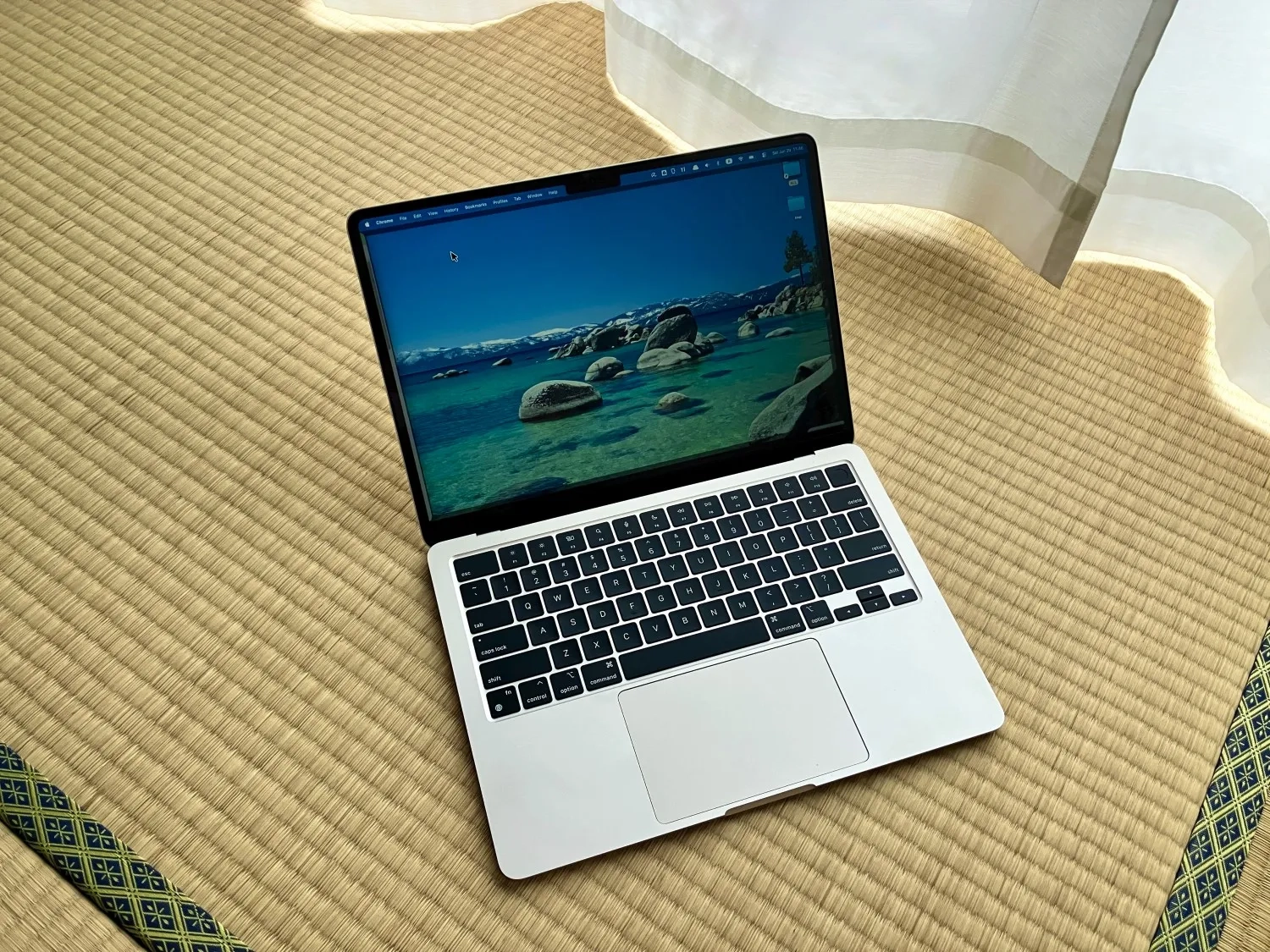
I chose Tahoe for the OS
Tahoe is a huge lake between California and Nevada.
My clean install procedure
Things to do before that
- Time Machine backups take time. Do them the day before or so. (It is a rough method, but copying the user folder to Drive is also an option.)
- Sublime Text is fine because I keep its settings in my dotfile.
- VSCode is fine because I have already set up Settings Sync.
- Postman data is fine because it is online.
- Export the Google Japanese Input dictionary (txt).
- Export MySQL Workbench connections. Tools → Configuration → Backup Connections (zip)
- Back up Cyberduck connections (copy the contents of
~/Library/Group Containers/xxxx.duck/Library/Application Support/duck/Bookmarks). - Back up the easy-to-forget
.sshfolder (well, this is in Time Machine too, though). - Back up FireAlpaca. FireAlpaca > Help > Open Config Folder > Back up everything inside this folder
- In Keychain Access > Certificates, if there is anything necessary, Export it in p12 format (it is way too annoying that this does not go into iCloud)
- Prepare the Wi-Fi password, wired LAN login information, and Apple ID login information on a nearby iPhone or something (then reinstalling is easier).
- Understand what the volumes
Macintosh HDandMacintosh HD - Data, which appear during the reinstall work, actually are. Otherwise, I end up tilting my head like, "Wait, what was this again...?" and it becomes noise during the work. The former is a read-only volume, and the latter is the volume that stores files and data. - Open "Erase your Mac" on my phone.
- This really became easier to understand after M1. The description below is easy to understand.
- "Before you trade in, sell, or give away your Mac, you can use Erase Assistant to reset your Mac to factory settings."
Clean install
Do it by following the official article above.
Configure various things in Terminal
# Finder settings
defaults write com.apple.finder AppleShowAllFiles -boolean true
defaults write com.apple.finder _FXShowPosixPathInTitle -boolean true
killall Finder

# Get Homebrew, which is essential for Mac
/bin/bash -c "$(curl -fsSL https://raw.githubusercontent.com/Homebrew/install/HEAD/install.sh)"
# If something goes wrong, uninstall it
# /bin/bash -c "$(curl -fsSL https://raw.githubusercontent.com/Homebrew/install/HEAD/uninstall.sh)"

# Install what I want with brew
# NOTE: With cask = Mac GUI apps; without cask = CLI apps and so on
brew install coreutils gh awscli awsebcli azure-cli pyenv pipenv cocoapods ffmpeg battery
brew install --cask brave-browser clipy visual-studio-code docker google-drive github mysqlworkbench karabiner-elements rectangle alfred google-chrome notion sublime-text zoom anki postman codex claude discord
Open all necessary web pages
# As essential as oxygen
open https://www.google.co.jp/ime/
open https://firealpaca.com/download/
open https://my.parallels.com/
open https://myrica.estable.jp/
open https://www.avira.com/ja/free-antivirus-mac
open https://www.logicool.co.jp/ja-jp/software/logi-options-plus.html
open https://www.keka.io/en/
open https://chatgpt.com/ja-JP/codex/

# I use these when I use them
open https://github.com/jbtule/cdto/releases
open https://sparkmailapp.com/ja
open https://www.office.com/
open https://cyberduck.io/download/
open https://ethanschoonover.com/solarized/

# From the App Store
open https://slack.com/intl/ja-jp/downloads/mac
open https://apps.apple.com/jp/app/demopro-screen-annotation/id1384206666
Things to do after installing everything
- For now, launch everything once (I want each app to create settings files and such with the initial values).
- Set Chrome as the default browser.
- Check the Google Drive connection.
- Check the iCloud connection.
- Register my favorite fonts.
- Download Dotfiles from GitHub.
- Open Sublime > Install Package Control > Delete the User folder > Apply Dotfiles > Reopen Sublime
- Apply the other Dotfiles things.
- Set up Alfred. Include Chrome bookmarks in the search targets. Then turn off unnecessary checks in Web Search. I noticed this time that sorting by Enabled first and then turning them off is easier (small trick).
- Set up Rectangle. One easy-to-forget thing is setting “cycle sizes on half actions” in General > Repeated commands.
- Set up the mouse with Logi Options+.
Even more detailed personal settings - Do something about System Settings
- Accessibility > Zoom
- Use keyboard shortcuts to zoom: ON!
- Use trackpad gestures to zoom: ON!
- Use scroll gesture with modifier keys to zoom: ON!
- Accessibility > Display
- Pointer size: Make it bigger
- Accessibility > Pointer Control
- Trackpad Options > Turn on a lot of things!
- Keyboard
- Key repeat rate: Fast!
- Delay until repeat: Short!
- Keyboard navigation: ON!
- Keyboard Shortcuts
- Mission Control
- Switch to Desktop N: ON!
- Keyboard
- Move focus to next window: Option + Tab!
- Input Sources
- Shortcuts OFF!
- Spotlight
- Shortcuts OFF!
- Function Keys
- Use all F1, F2, etc. keys as standard function keys: ON!
- App Shortcuts
- Add a shortcut
- Application: All Applications
- Menu Title: Merge All Windows
- Keyboard Shortcut: Command + Control + M
- I really like this operation.
- Add a shortcut
- Mission Control
- Desktop & Dock
- Automatically rearrange Spaces based on most recent use: Turn this ridiculous setting OFF!
- Displays have separate Spaces: OFF!
- Click wallpaper to reveal desktop: Turn this meddlesome setting OFF!
- Hot Corners settings are here too!
- Menu Bar
- Configure here whether to show or hide icons in the menu bar
- Displays
- Advanced
- Allow your pointer and keyboard to move between any nearby Mac: If I feel like moving seamlessly between two Macs, turn it ON!
- Automatically reconnect to any nearby Mac: OK!
- Advanced
Even more detailed personal settings - Do something about Finder
- Menu bar Finder
- Settings
- General tab
- Show these items on the desktop: OFF!
- Advanced
- Show all filename extensions: ON!
- General tab
- Settings
- Right-click on the desktop
- Sort By
- Snap to Grid: ON!
- Sort By